Expansion Bay

Screenshots

The app on macOS, in light and dark appearance. Select an image to view the full window.

Library

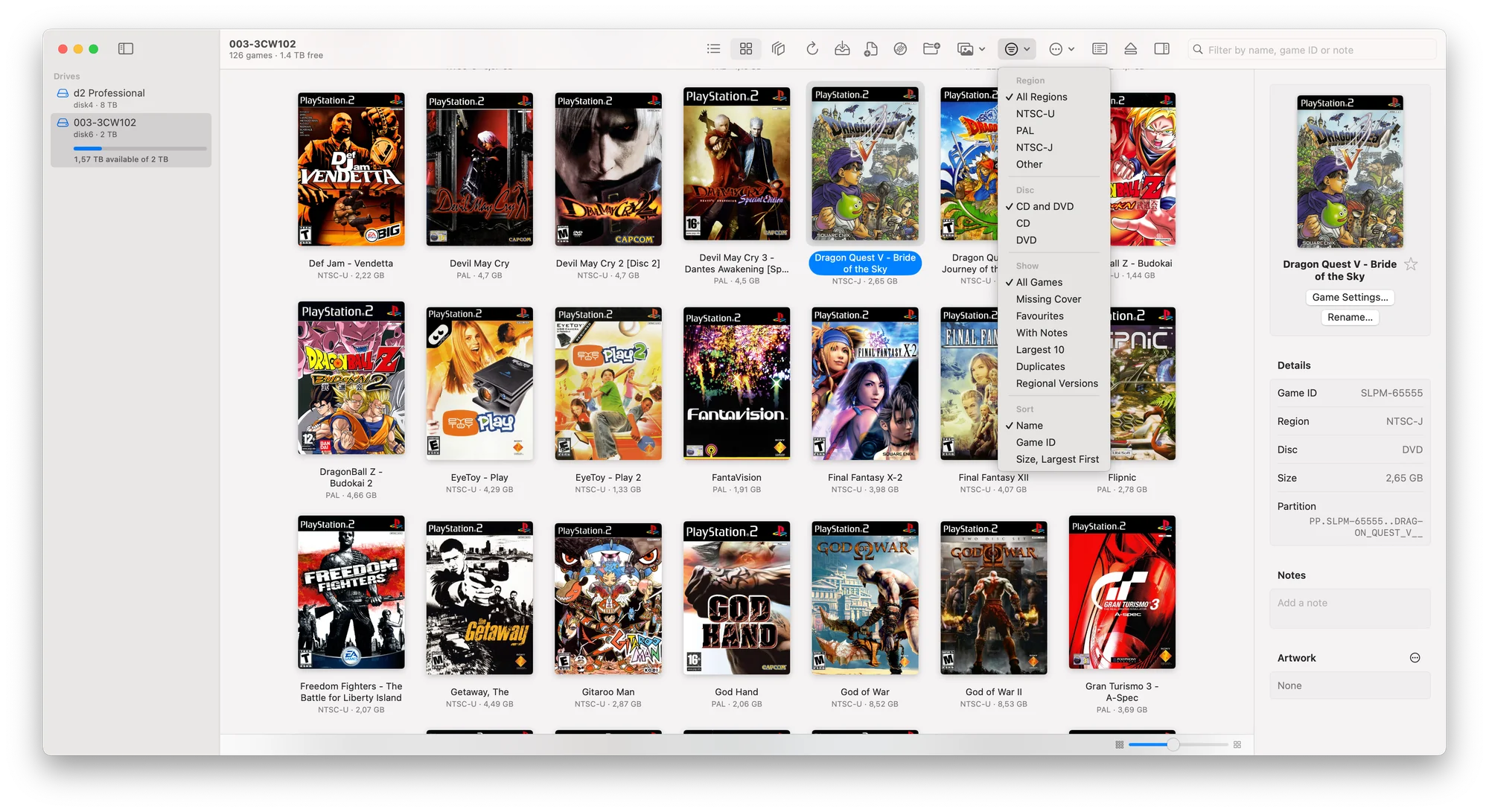
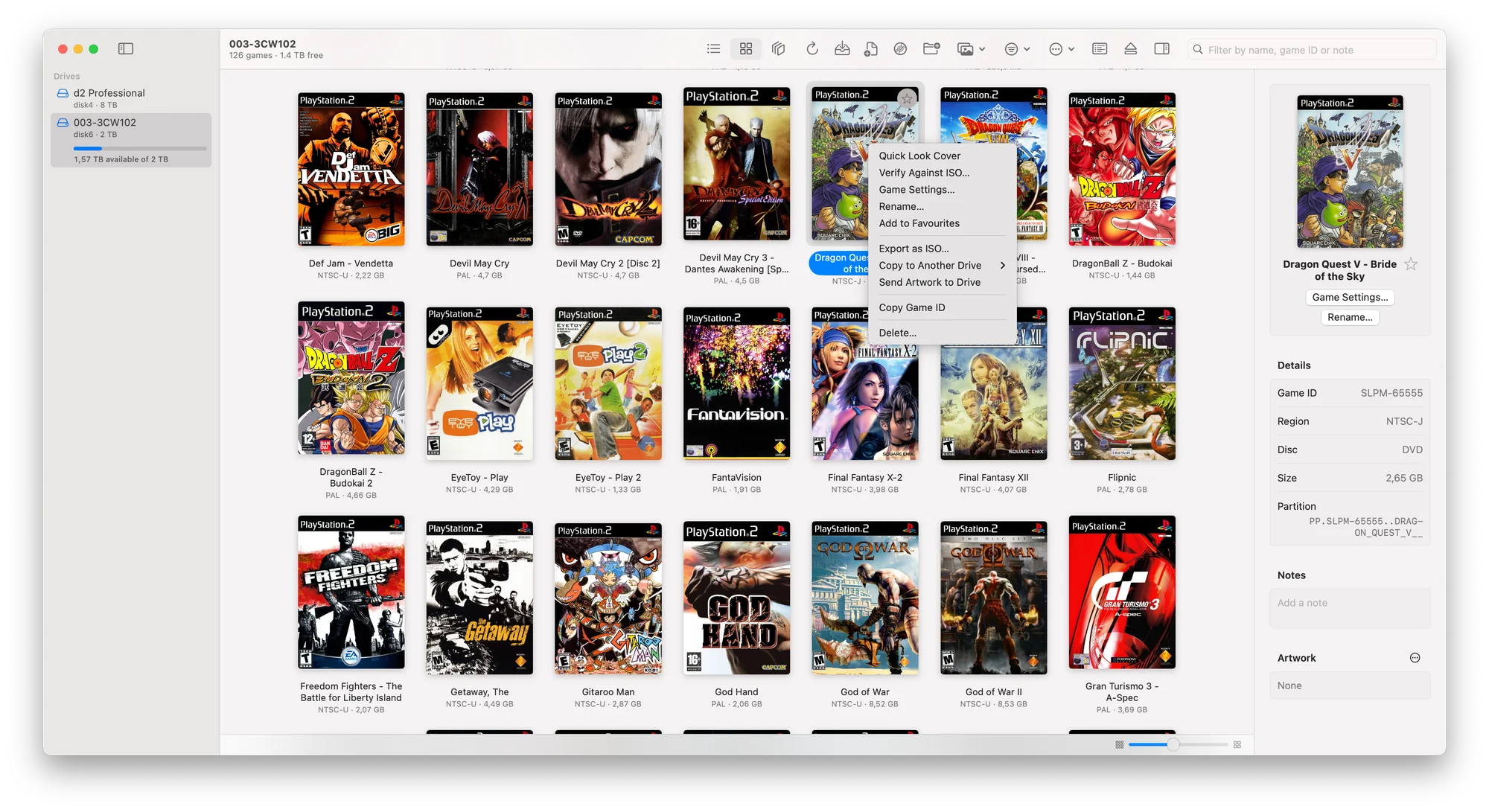
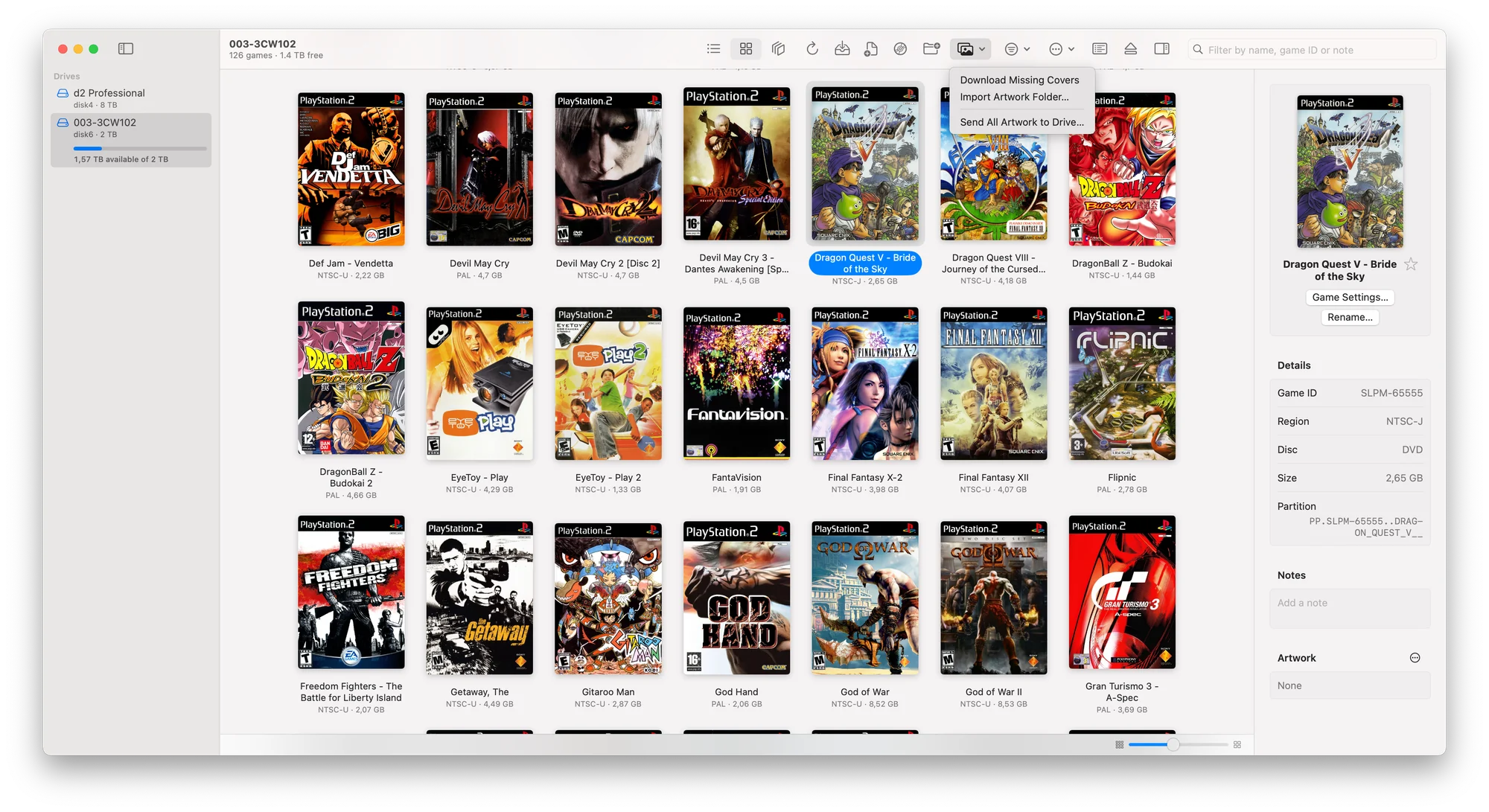
Three views of the same drive. Each can show the inspector on the right.
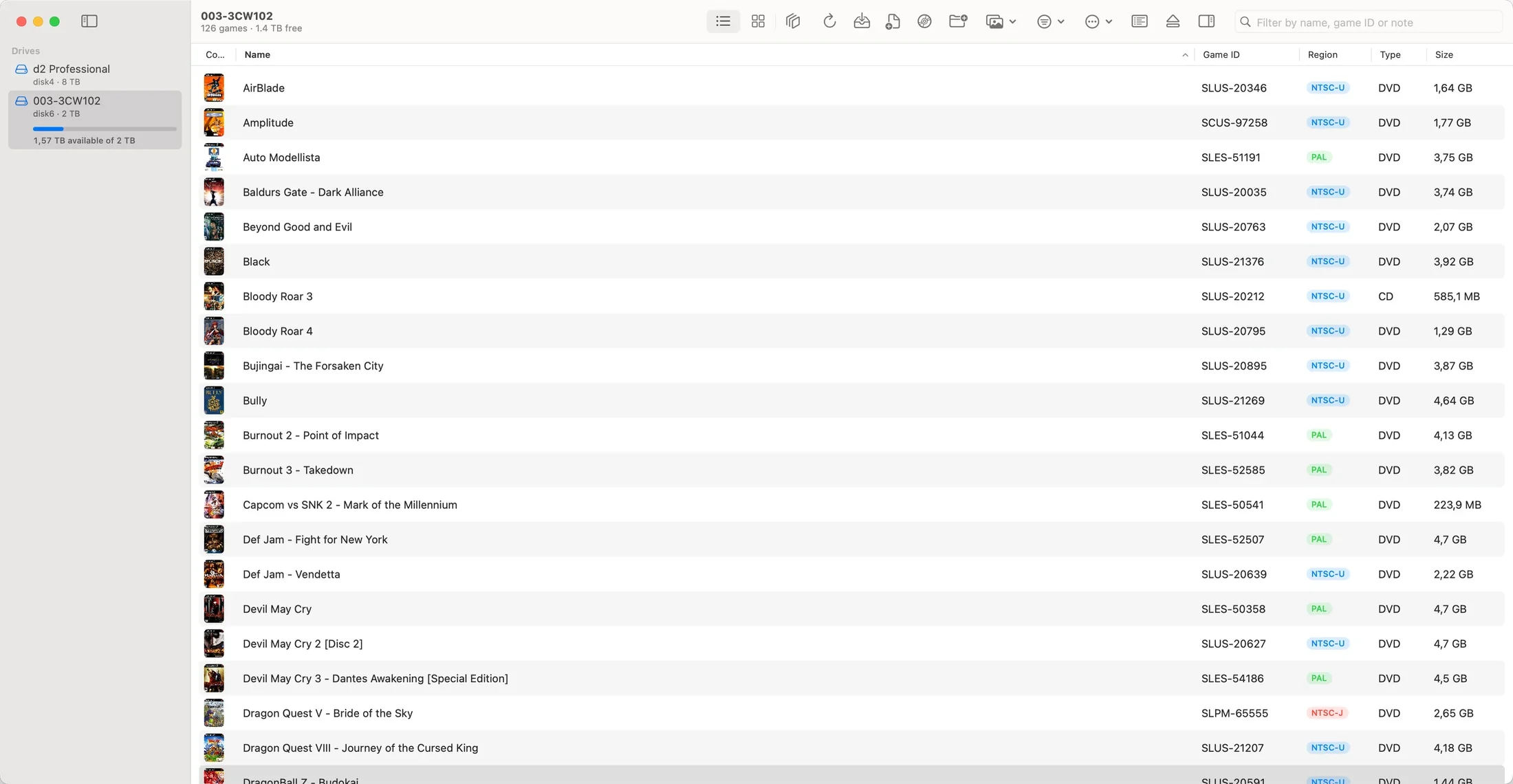
The list view: sortable columns for cover, name, game ID, region, type and size.
List. Sortable columns for cover, name, game ID, region, type and size.
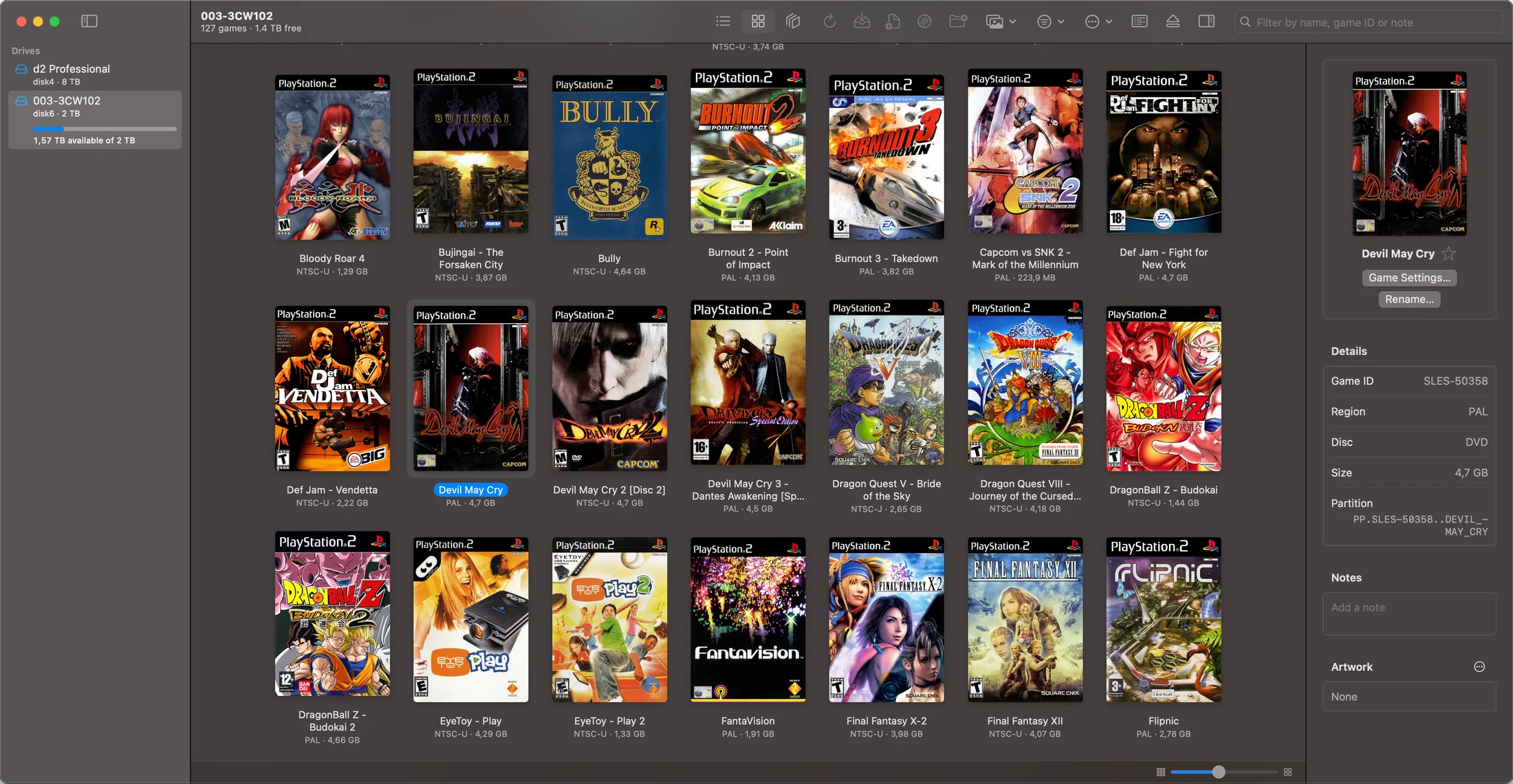
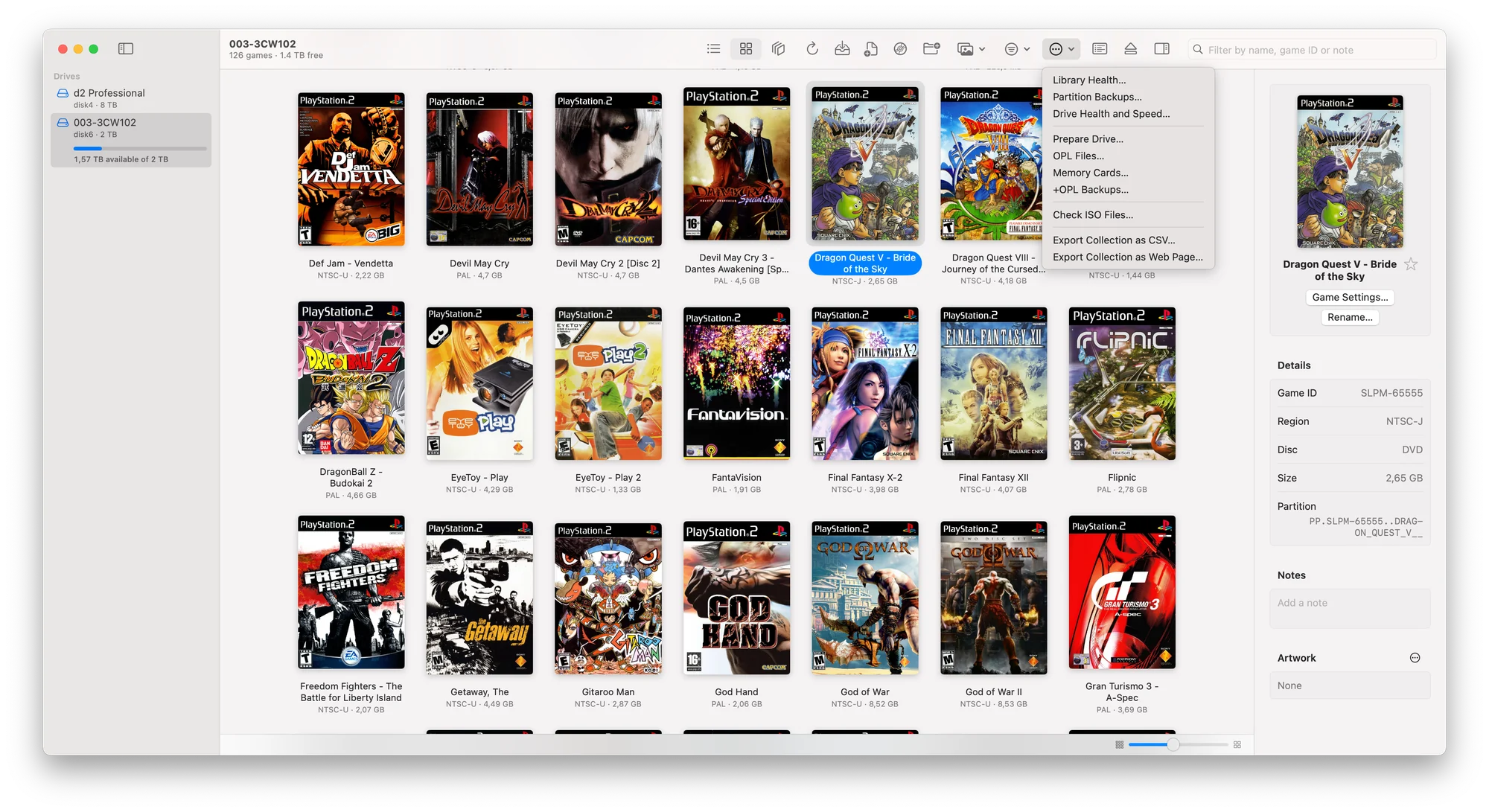
The grid view in dark appearance: a gallery of game covers, with the inspector showing a selected game's ID, region, disc, size and partition name.
Grid, in dark appearance. The inspector shows the selected game's ID, region, disc, size and partition.
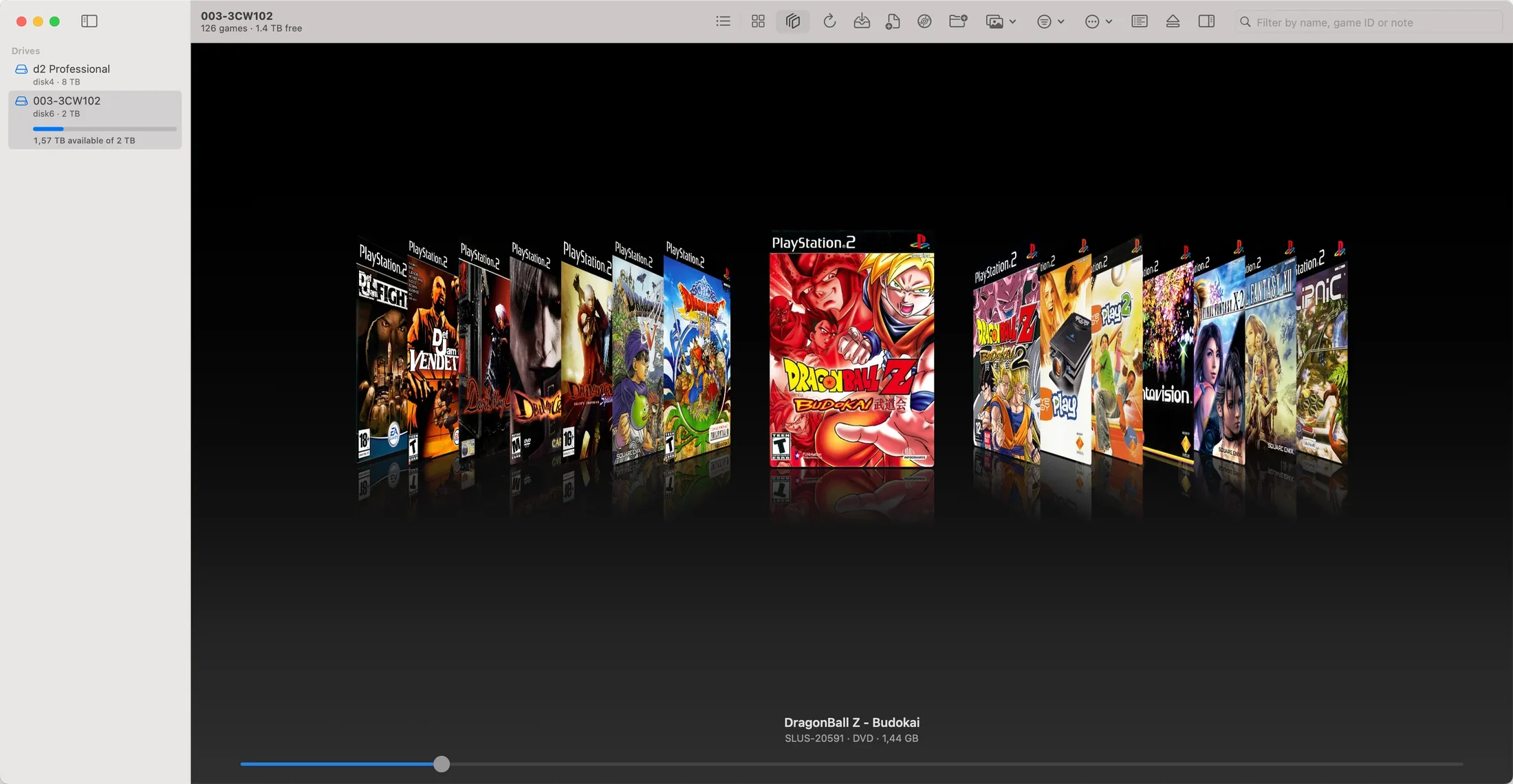
Cover Flow: the selected cover in the centre with the rest of the library receding to either side, and a slider below.
Cover Flow. Arrow keys, swipe or the slider move through the library.

Installing

The install queue flags games that are already on the drive and asks for the device ID before writing. Archives are unpacked first.
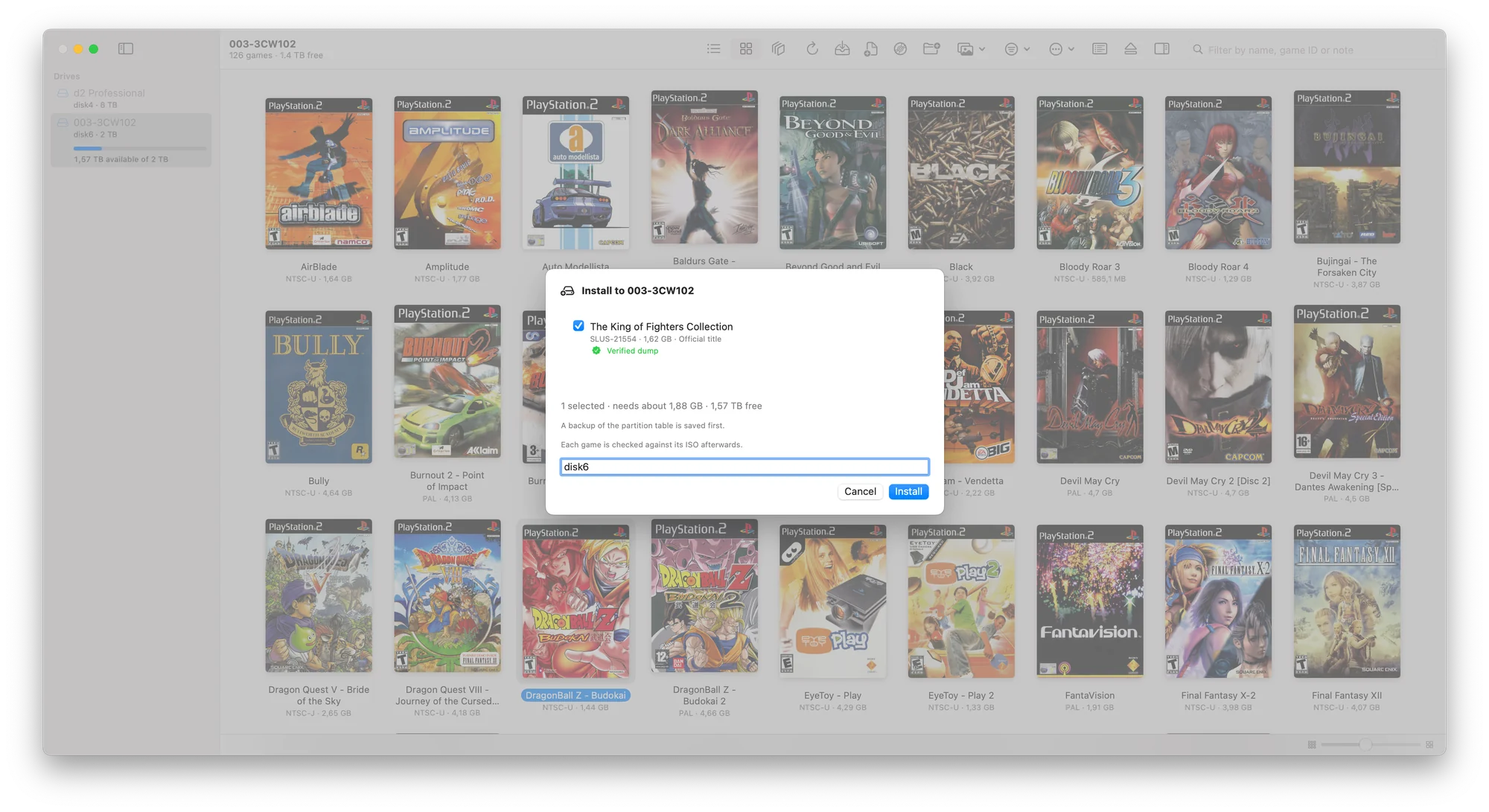
The install sheet listing one game marked as a verified dump, with the device ID typed into the confirmation field.
Install queue. Each game shows its ID, size and whether it matches a known good dump. Typing the device ID confirms.
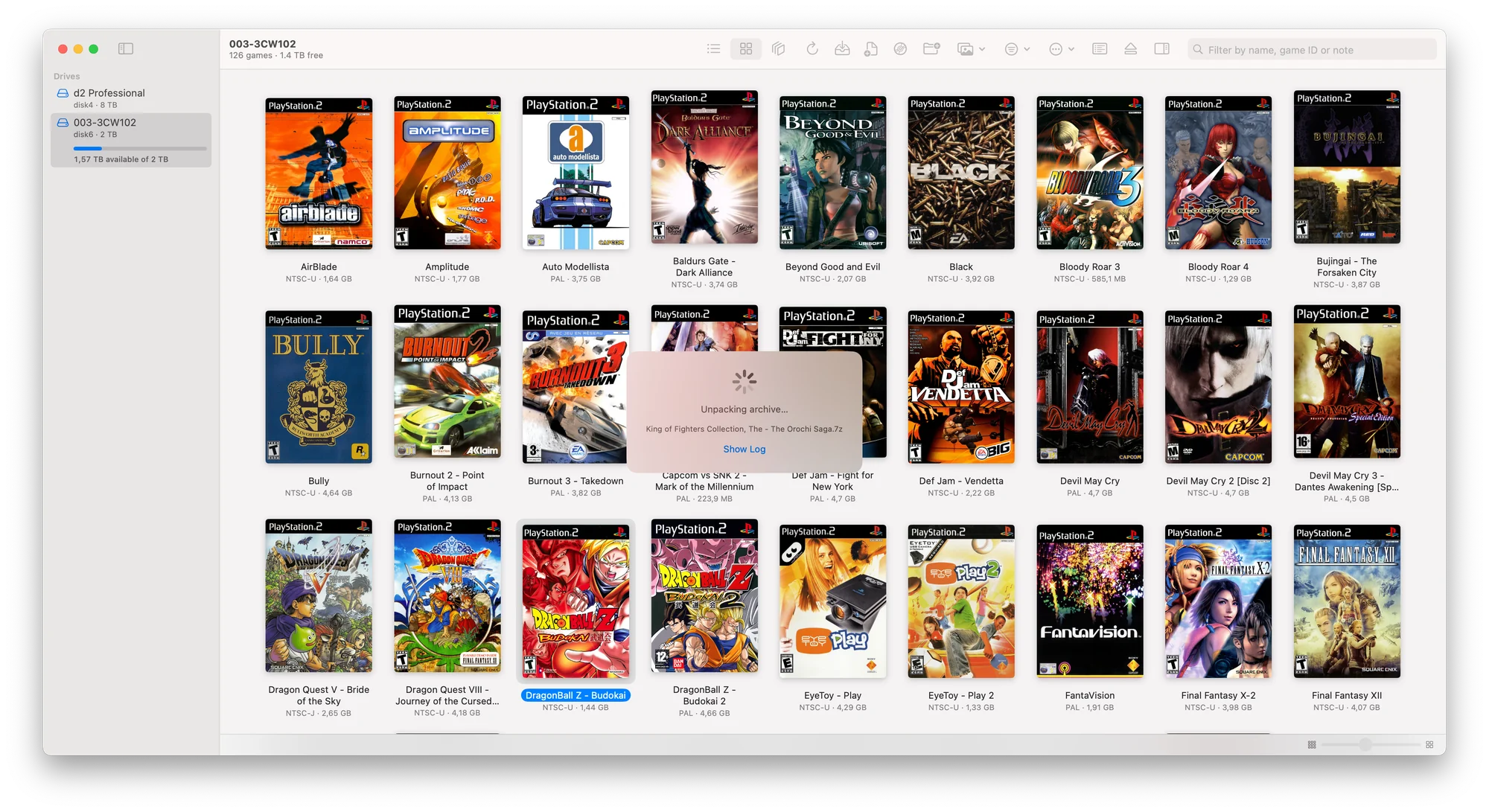
A progress indicator reading Unpacking archive over the game grid.
Unpacking an archive before installing.

Progress

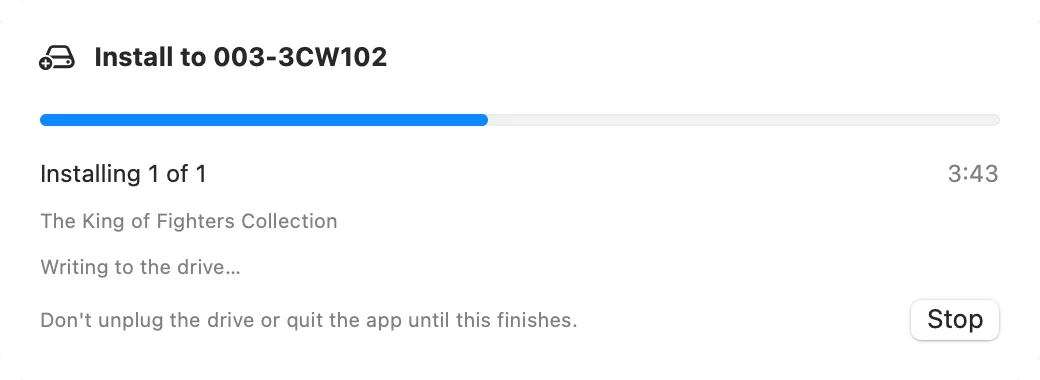
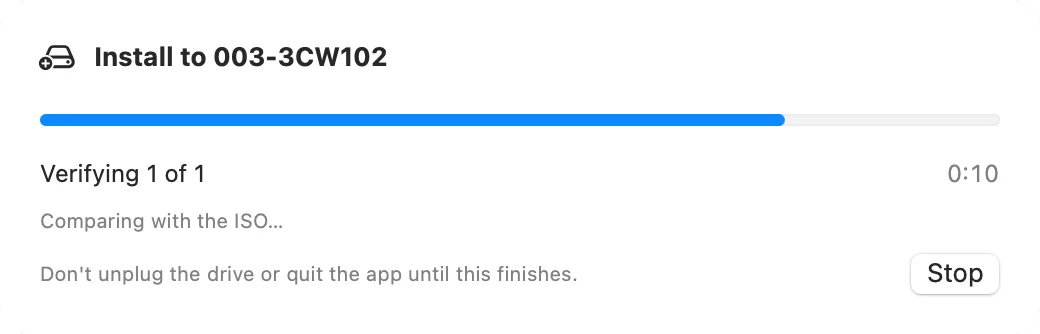
The four stages of one install, from the safety backup to the final comparison.
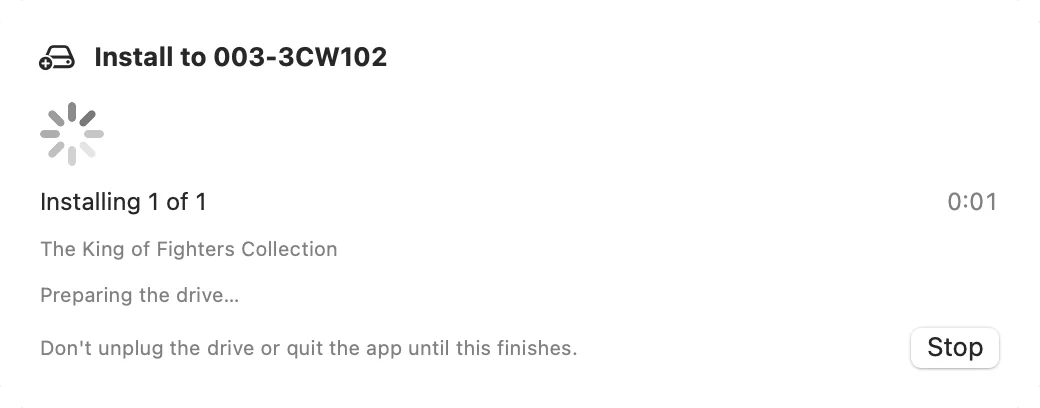
An install sheet reading Preparing the drive.
Preparing the drive. The partition table is saved first.
An install sheet reading Writing to the drive, with a progress bar.
Writing the game to the drive.
An install sheet reading Verifying, comparing with the ISO.
Reading the game back and comparing it with the ISO.
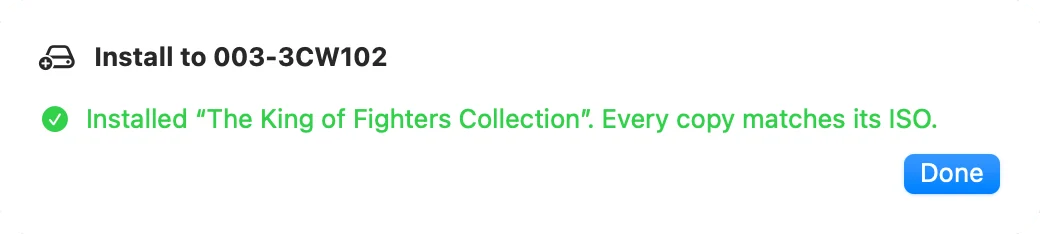
An install sheet reporting that every copy matches its ISO, with a Done button.
Finished. The copy matches the ISO.

Library Health

A read-only report on the library. It changes nothing on the drive.
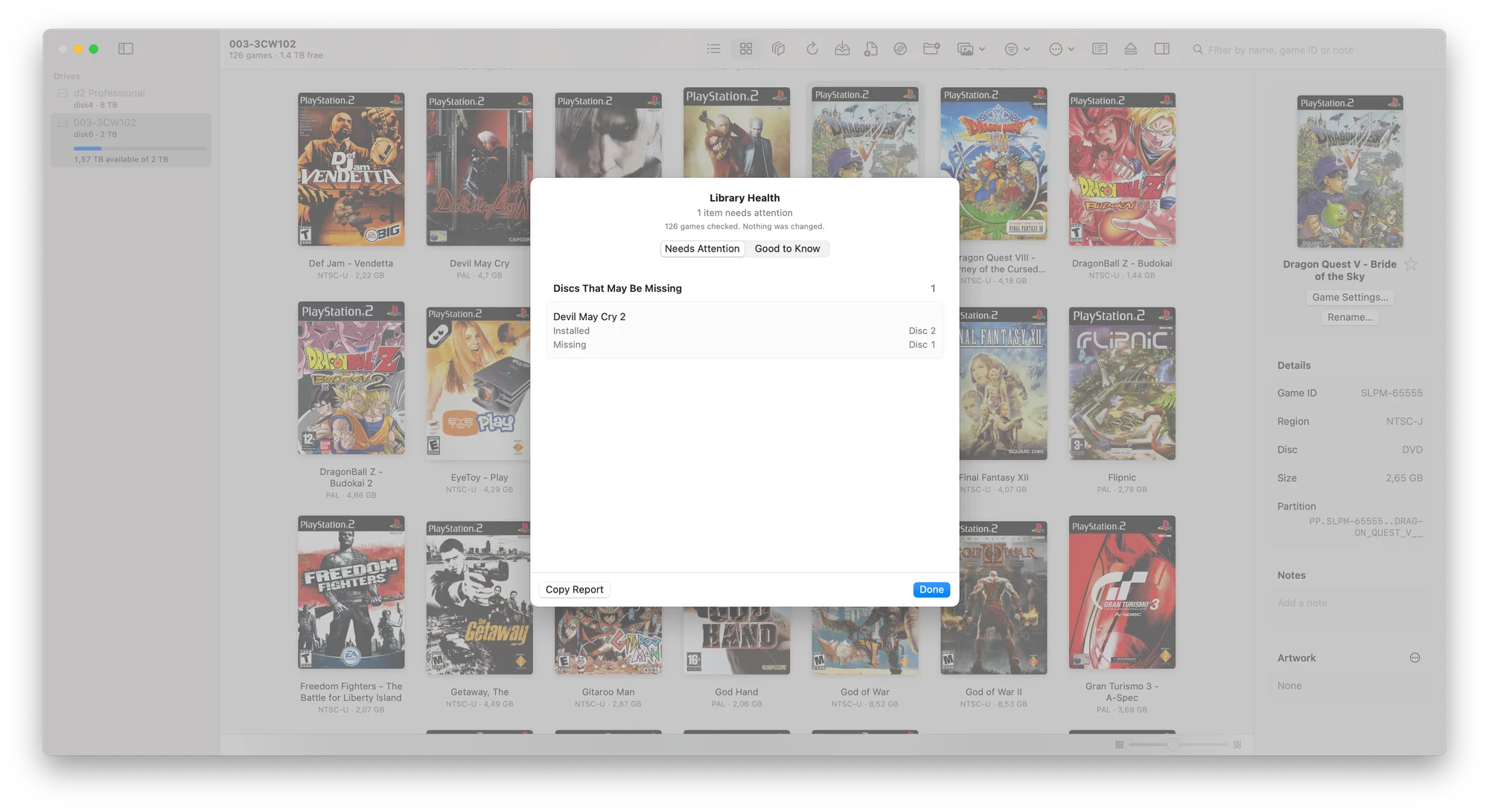
The Library Health report on the Needs Attention tab, listing a game whose first disc may be missing.
Needs Attention: a game with a disc that may be missing.
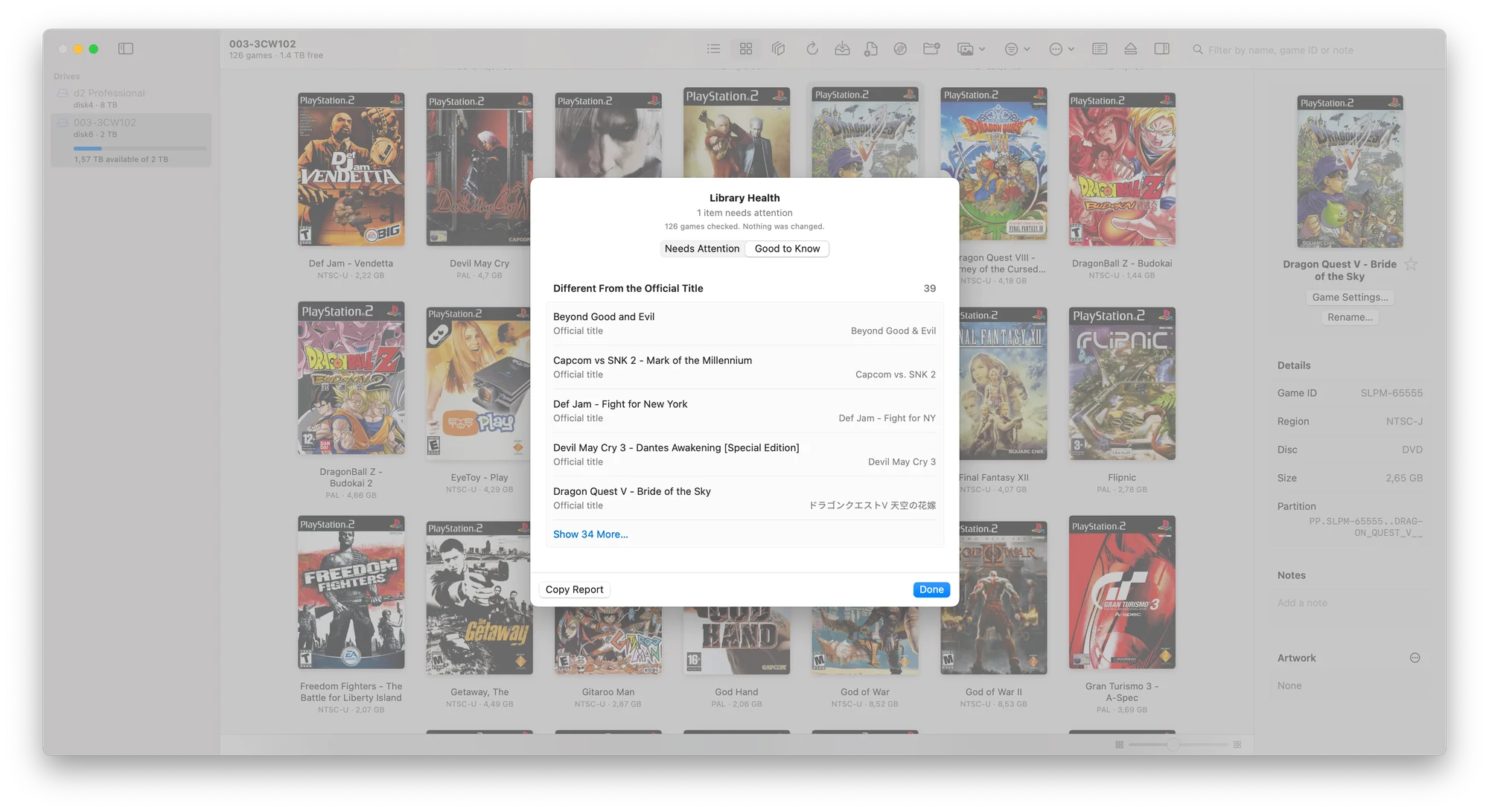
The Library Health report on the Good to Know tab, listing names that differ from the official title.
Good to Know: regional versions and names that differ from the official title.

Backups

The partition table is saved before every install and delete. +OPL backups copy settings, memory cards, cheats, covers and themes. Games are not included.
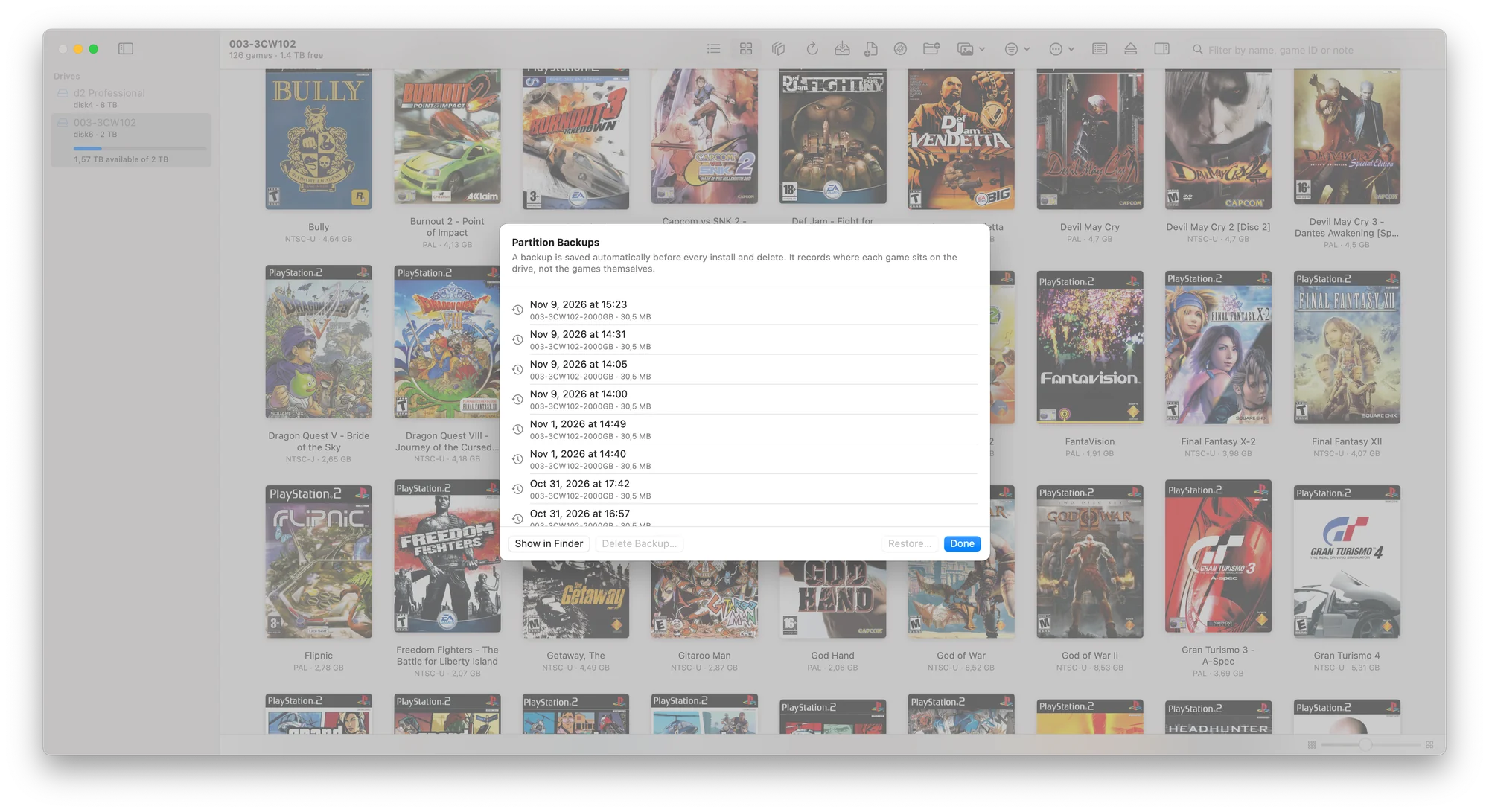
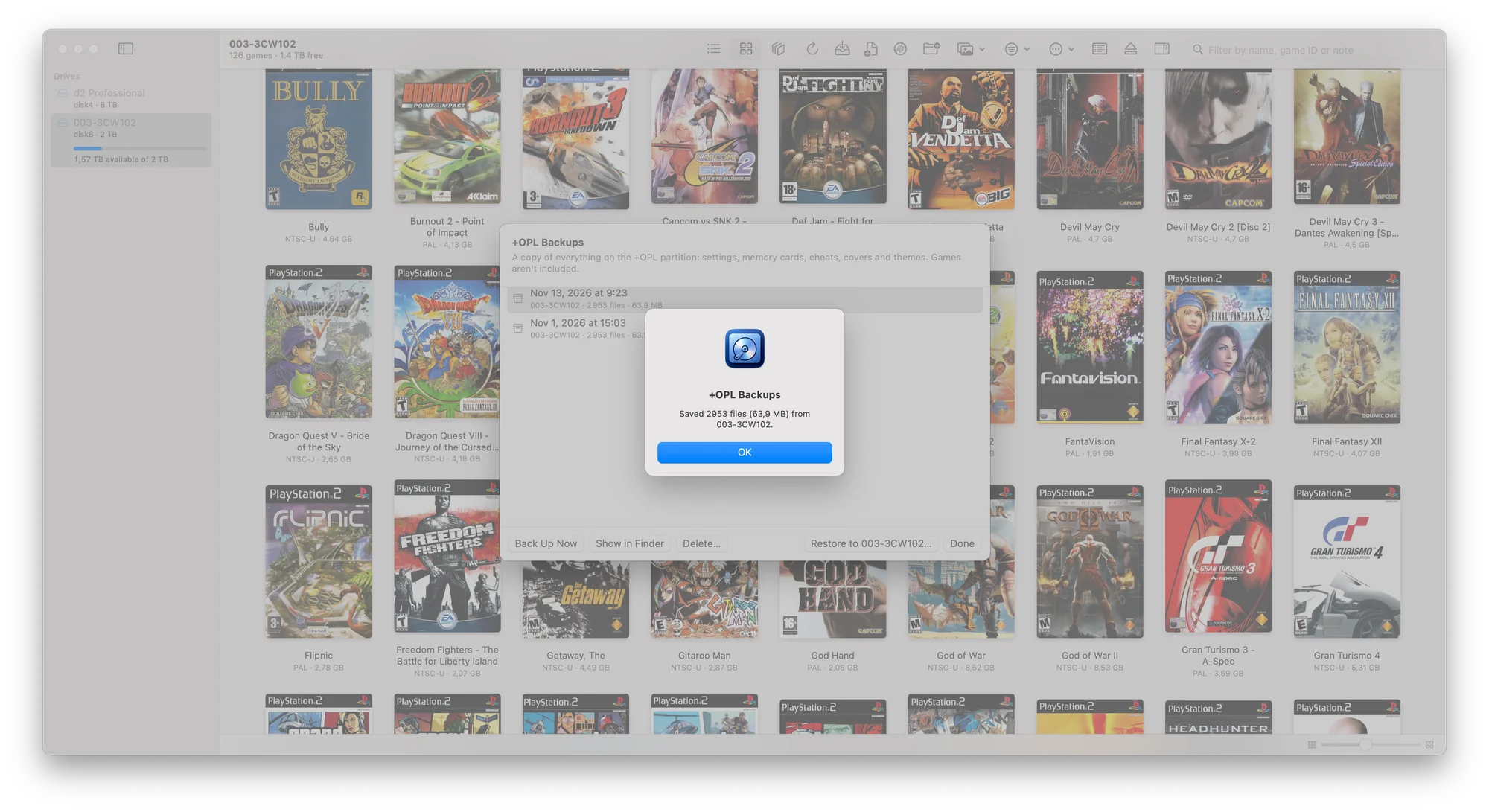
The Partition Backups sheet listing dated backups of the drive's partition table.
Partition Backups, by date and drive. Restore one if the partition table is damaged.
The +OPL Backups sheet with a confirmation reading Saved 2953 files from the drive.
A finished +OPL backup reports the file count and size.

Drive Health and Activity Log

The connection and read speed of the selected drive, and a log of everything the app has done.
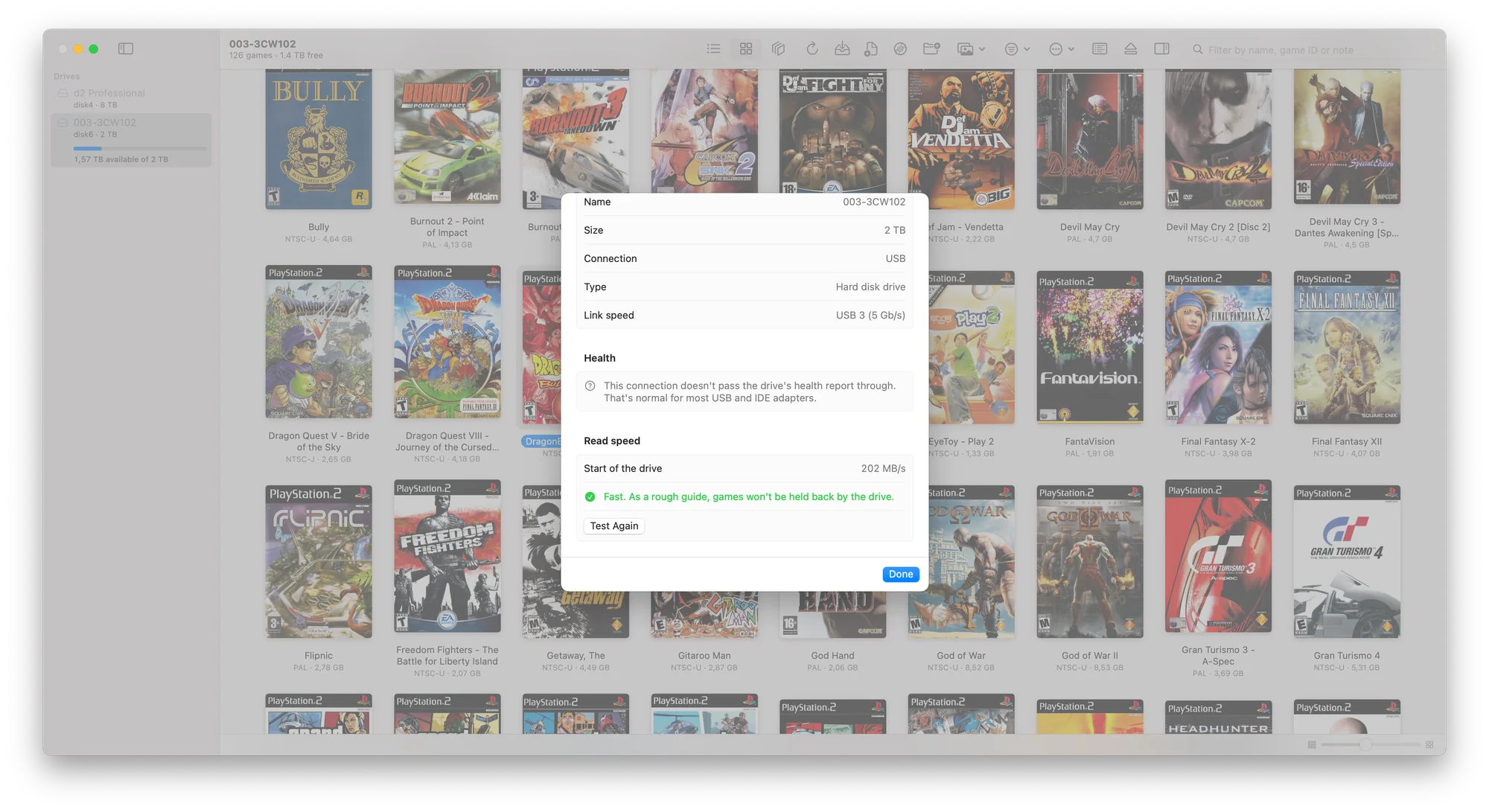
The Drive Health and Speed sheet: connection, link speed, a health note and a read speed of 202 MB/s.
Drive Health and Speed. Connection, link speed and a short read test.
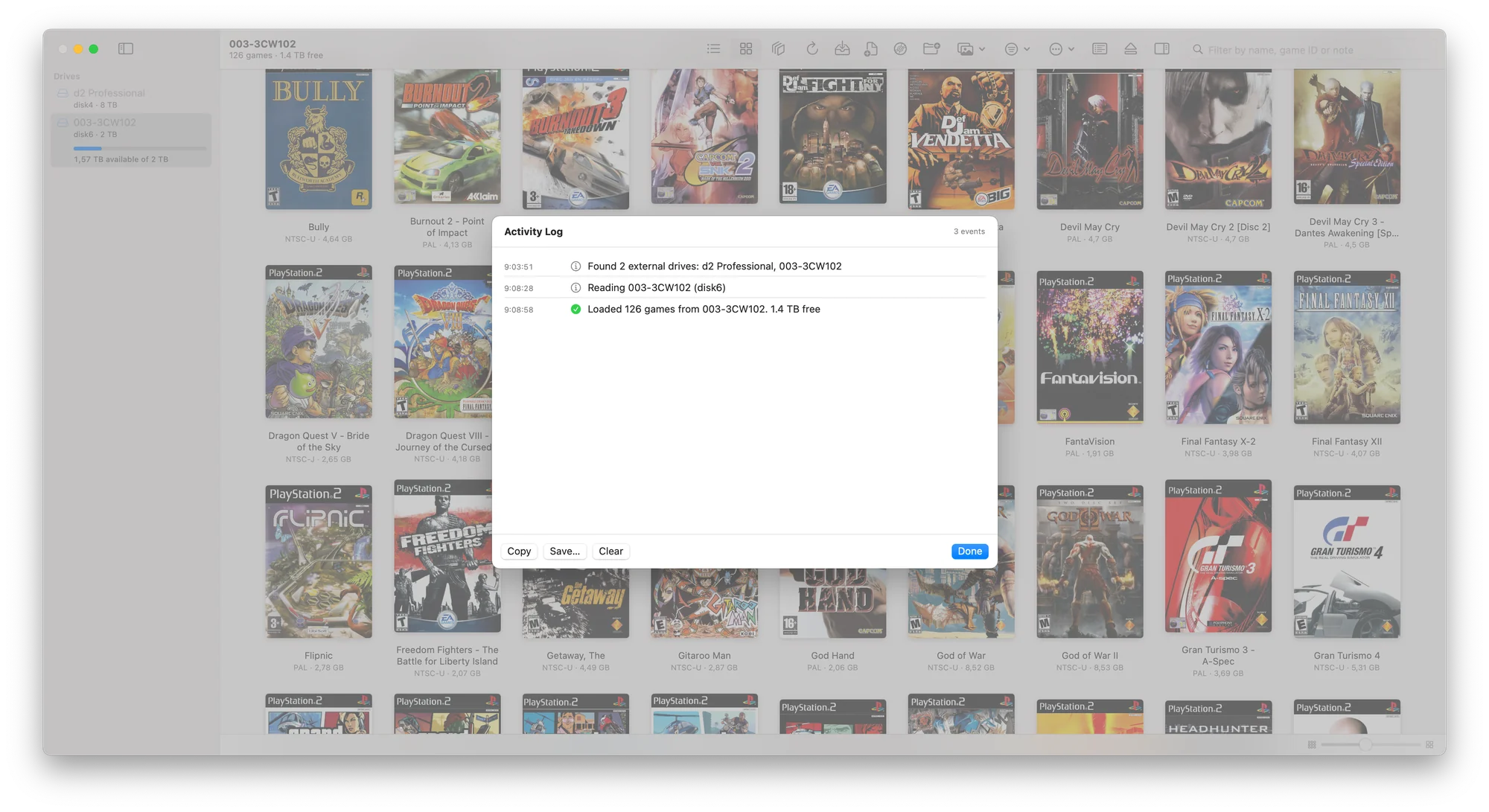
The Activity Log listing drives found and games loaded, with Copy, Save and Clear buttons.
Activity Log. Copy or save it when reporting a problem.

Settings

Everything is optional. The defaults suit most drives.
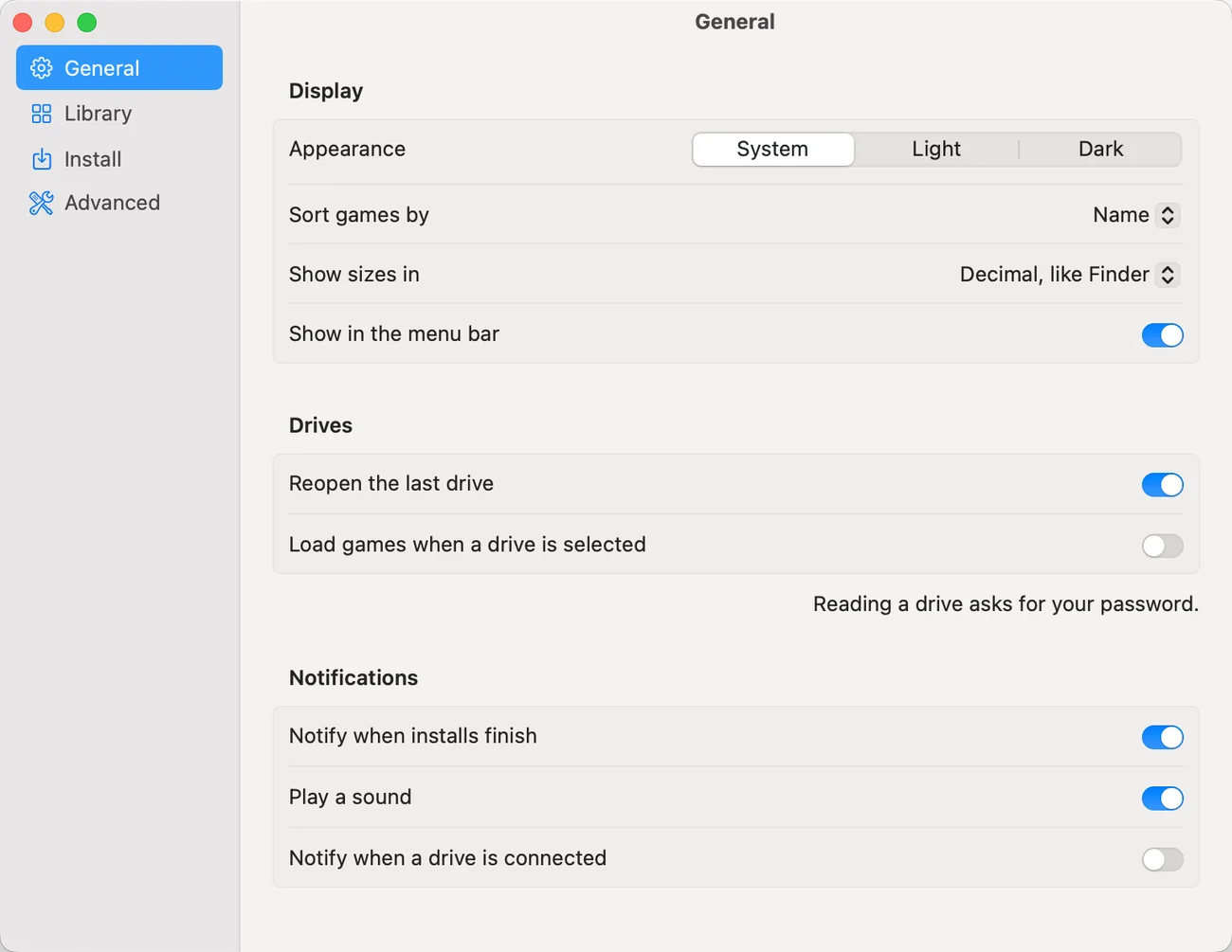
The General settings pane: appearance, sort order, size units, menu bar, drives and notifications.
General. Appearance, sort order, size units, drives and notifications.
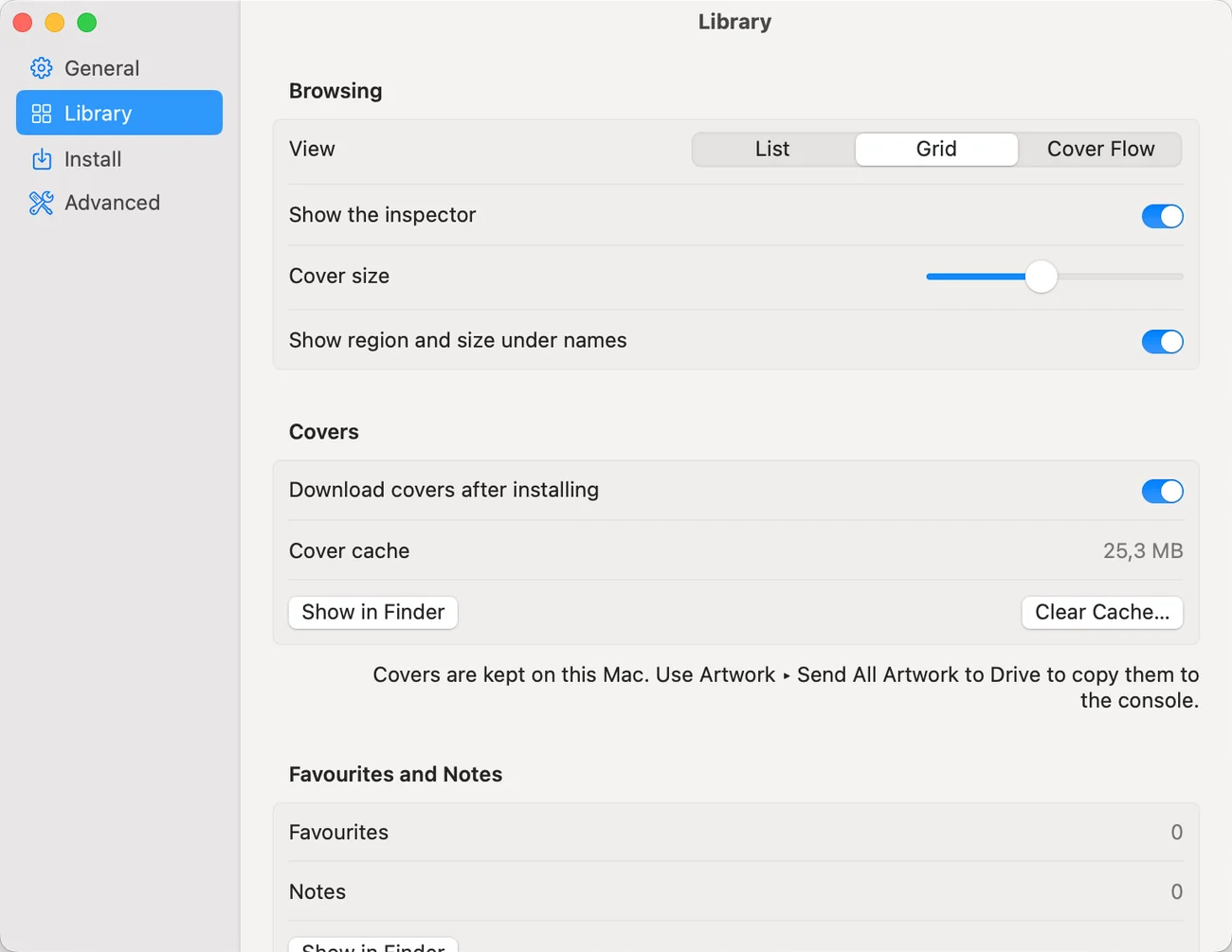
The Library settings pane: view, inspector, cover size, covers and cache, favourites and notes.
Library. Default view, covers and cache, favourites and notes.
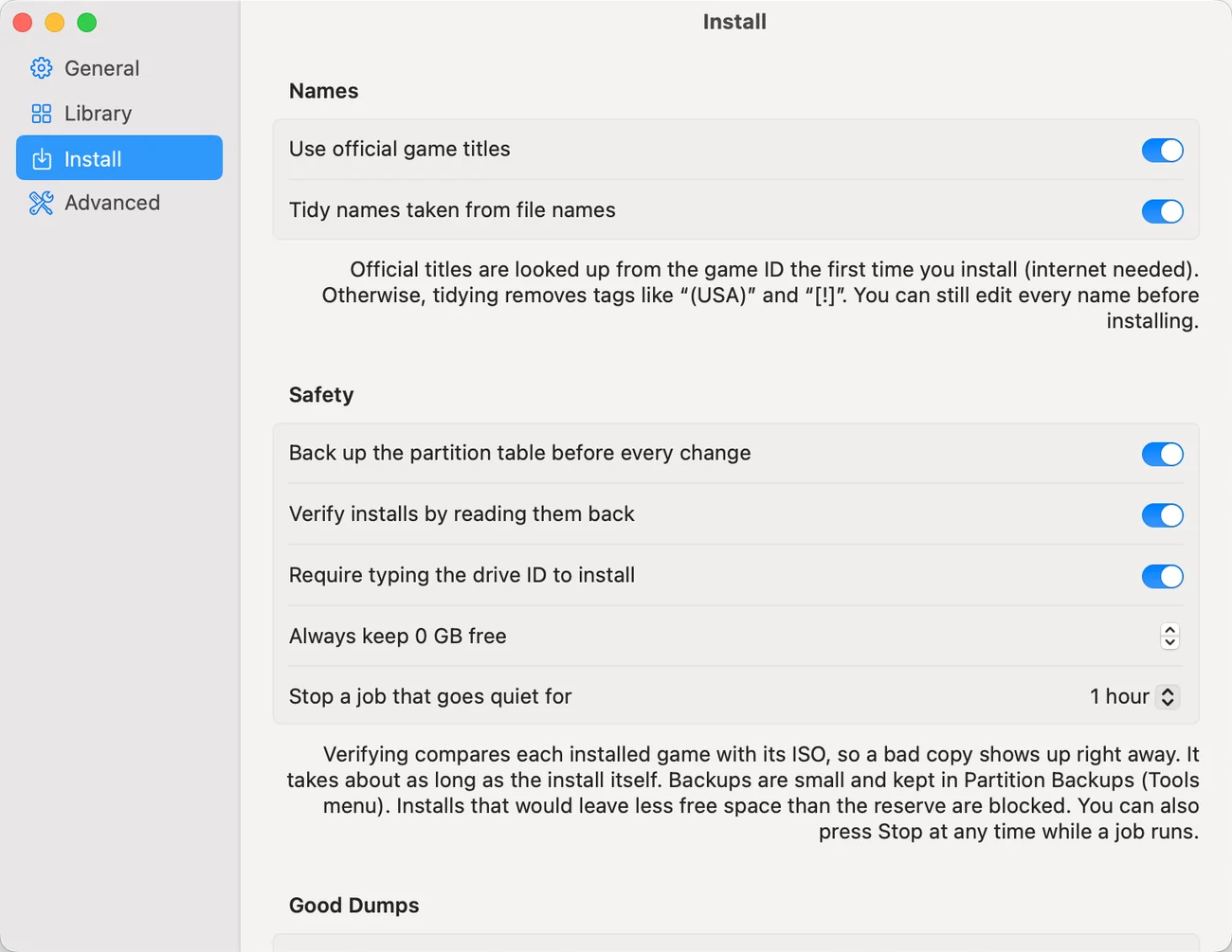
The Install settings pane: names, and safety options for backups, verifying, confirmation, free space and stalled jobs.
Install. Names, backups, verifying, the drive ID check and a free-space reserve.
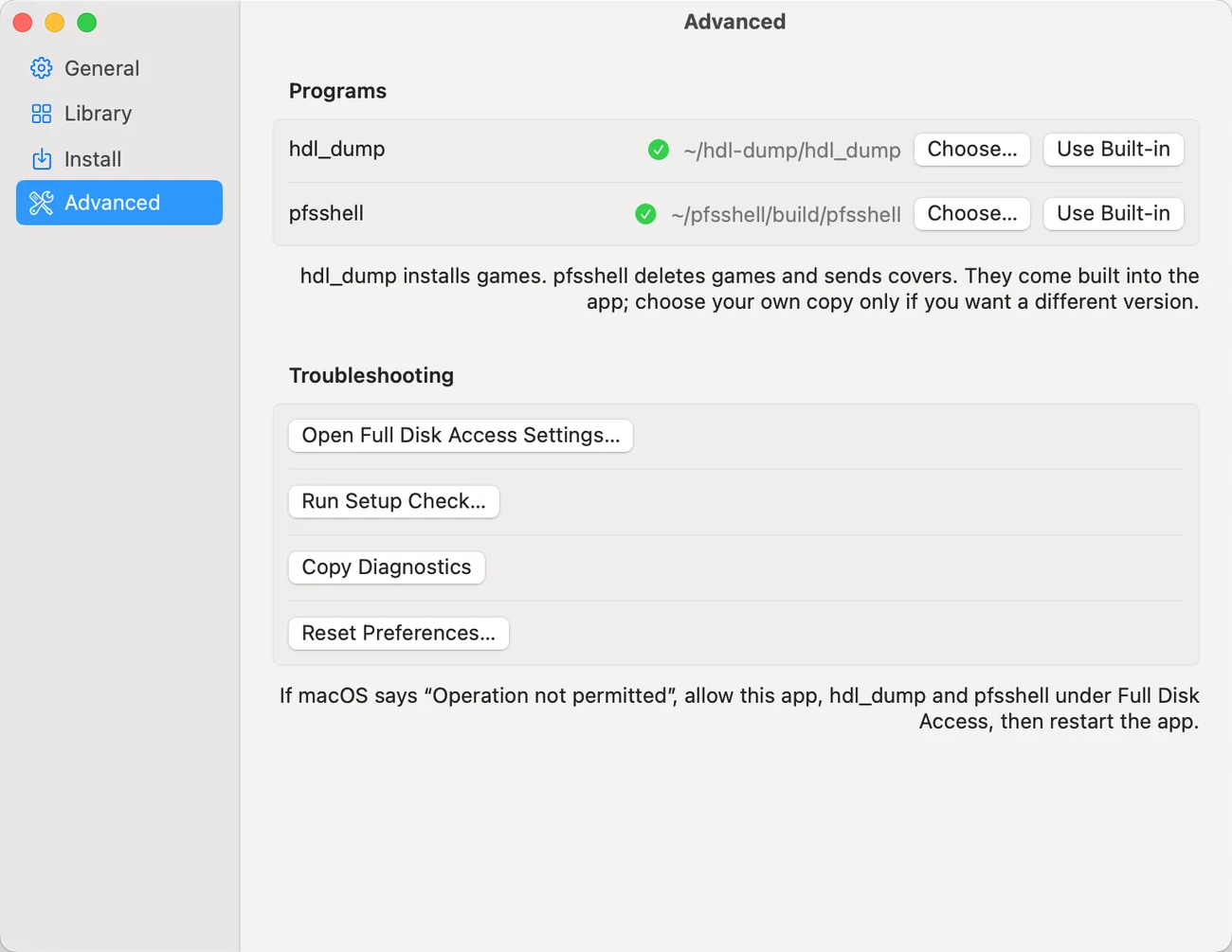
The Advanced settings pane: programs, and troubleshooting buttons.
Advanced. Own copies of the tools, Full Disk Access, Setup Check and diagnostics.